Designing a website requires both creativity and precision. Figma has quickly become the go-to design tool for web designers because of its simplicity, collaborative features, and power to create pixel-perfect layouts. Whether you are a startup exploring your first website or an experienced brand looking to streamline your design process, Figma offers everything you need to move from concept to final prototype. At Redspider Web & Art Design, we use Figma to bring ideas to life for clients in Dubai and beyond, combining innovation with efficient workflows.
What is Figma and Why is it Best for Web Design?
Figma is an online UI/UX design tool that allows individuals and teams to create, edit, and collaborate on web and app designs in real-time. Unlike traditional design software, there’s no heavy installation or compatibility issue — everything runs in the browser or desktop app.
Key Benefits:
- Collaboration in Real Time: Multiple people can design, edit, and comment at once.
- No Software Limitations: Works on Windows, Mac, and even directly in the browser.
- Perfect for Web Design: From detailed mockups to interactive prototypes, Figma makes it simple to translate ideas into visuals.
For businesses in Dubai, this means faster design cycles, reduced communication gaps, and designs that are ready for development without delays.
Getting Started with Figma (Beginner Level)
Step 1: Create an Account
Sign up for a free account on Figma’s website. The free plan is powerful enough for small businesses or personal projects.
Step 2: Explore the Interface
The workspace includes:
- Canvas: The main design area.
- Toolbar: Tools for shapes, frames, text, and more.
- Layers Panel: Organize elements in a structured way.
- Right Sidebar: Adjust colors, typography, alignment, and effects.
Step 3: Understand Figma’s Building Blocks
- Frames: Work like artboards for each web page.
- Text & Shapes: Create headlines, buttons, and layouts.
- Layers & Groups: Keep designs neat and easy to manage.
- Images: Import directly with drag-and-drop.
With these basics, even beginners can start experimenting with a website mockup in minutes.
Designing Your First Web Page in Figma
- Set Up a Frame: Start with a desktop frame (e.g., 1440px wide). Add layout grids to structure your design.
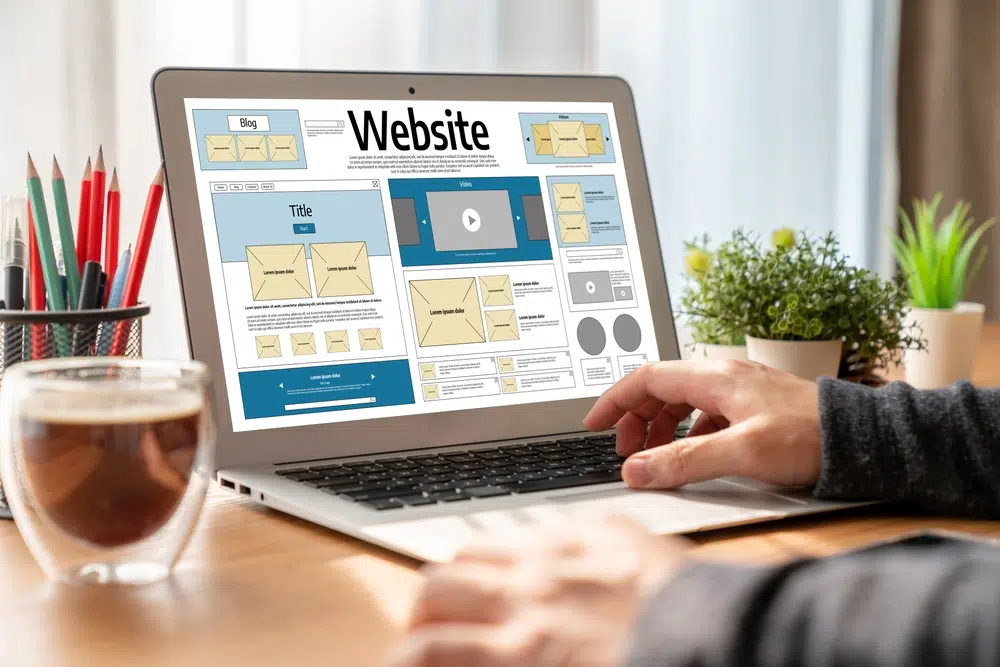
- Create a Wireframe: Use simple boxes, lines, and placeholders to sketch the homepage sections (header, banner, services, footer).
- Add Content and Style: Replace placeholders with real text and visuals. Define consistent typography and colors for brand identity.
- Turn Elements into Components: Buttons, navigation bars, and icons can be saved as reusable components, keeping the design consistent.
- Apply Auto Layout: Ensure sections adjust automatically for responsive behavior across different screen sizes.
- Prototype the Page: Connect elements and preview the flow of your design as if it were a real website.
This process takes your idea from rough layout to a clickable prototype that can be shared with your team or clients.
Advanced Figma Features for Professional Web Design
1. Design Systems & Libraries
Create a library of reusable components (buttons, cards, forms) that can be shared across multiple projects. This ensures consistency for brands managing multiple web platforms.
2. Responsive Layouts
Use Auto Layout and constraints to simulate how designs adapt to different screens. For businesses targeting mobile-first audiences, this feature is essential.
3. Interactive Components
Add hover states, dropdown menus, or animated transitions to make prototypes feel like live websites.
4. Plugins & Extensions
Figma’s community offers plugins like:
- Unsplash: Insert stock images.
- Iconify: Access thousands of icons.
- Accessibility Tools: Test contrast and readability.
- Content Reel: Add realistic placeholder text.
5. Team Collaboration
Designers, marketers, and developers can work together, leave comments, and track version history — all within the same file.
Developer Handoff and Export
One of Figma’s strongest features is smooth collaboration between designers and developers.
- Inspect Mode: Developers can check CSS properties, spacing, and font details directly in the design.
- Export Assets: Save images, SVG icons, and graphics for website integration.
- Dev Mode Tools: Generate style guides and ensure designs match perfectly when coded.
This shortens the gap between design and live website development — a major advantage for companies working on strict timelines.
Best Practices for Using Figma in Web Design
- Organize Layers & Name Elements Clearly to avoid confusion in large projects.
- Use Components and Styles to ensure consistency.
- Think Mobile-First: Always test your design on smaller frames.
- Avoid Placeholder Text in final versions; use real or meaningful content.
- Get Feedback in Context: Use the comment feature to gather reviews directly on the design.
- Optimize Images: Large, uncompressed files can slow both design files and websites.
By applying these practices, businesses can achieve professional, scalable, and user-friendly designs.
FAQs About Figma for Web Design
Can I design an entire website in Figma?
Yes. You can design complete multi-page websites, but you’ll still need developers to turn the designs into live code.
Is Figma free for businesses?
Yes, the free plan is sufficient for many small businesses. Larger teams can use paid plans for advanced collaboration.
Do I need to know coding?
No. Figma is purely visual, though understanding basic web concepts helps when working with developers.
Can I use Figma offline?
Yes. Figma has desktop apps (Windows and Mac) that allow offline editing. When you reconnect to the internet, your changes will sync automatically.
How is Figma different from Adobe XD or Sketch?
Figma is browser-based and focuses heavily on collaboration, while Adobe XD and Sketch are desktop-first tools. With Figma, teams in different locations can work together in real time without file-sharing hassles.
Can clients view designs in Figma without an account?
Yes. You can share a link with “view only” permissions. Clients do not need to sign up to see or comment on your design.
Can I animate elements in Figma?
Yes. Figma allows smart animate transitions in prototypes. You can create hover states, page transitions, and micro-interactions to simulate real website behavior.
Conclusion
Figma empowers startups, agencies, and enterprises to design beautiful, responsive, and functional websites without technical barriers. From first-time designers to professionals building complex systems, Figma adapts to every stage of the process. At Redspider Web & Art Design, we use Figma to ensure that every project — from a simple landing page to a large corporate portal — is built on creativity, collaboration, and clarity.
If you want a website design that speaks for your brand and engages your audience, using Figma is the smartest place to start.